How to book.
A walkthrough of the booking flow from start to finish.
Three ways to start
1. From the website: realestatemedialife.com → hit Book Now at the top.
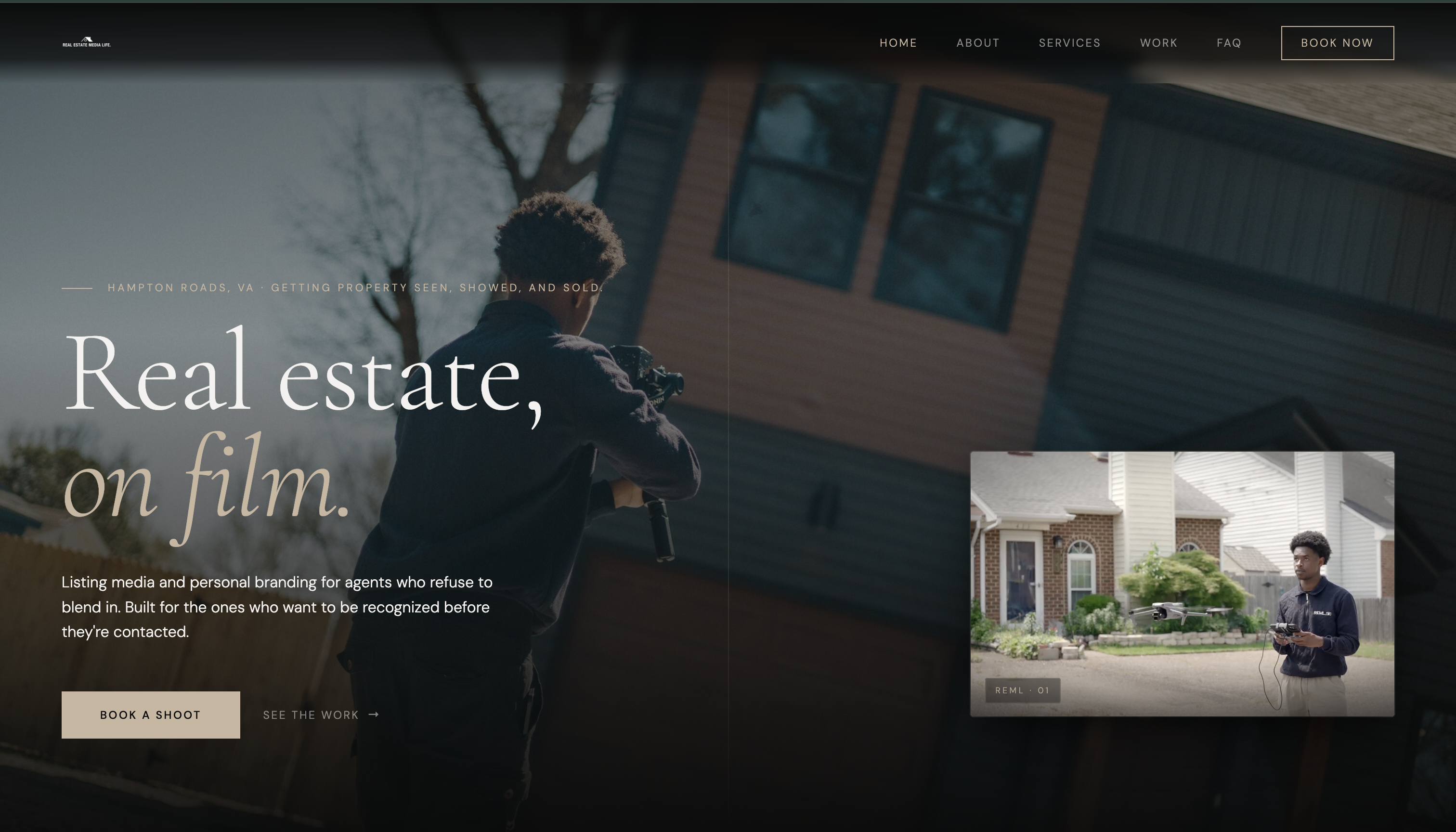 realestatemedialife.com — Book Now in the top right.
It scrolls you down to the booking section. Click Book on Spiro.
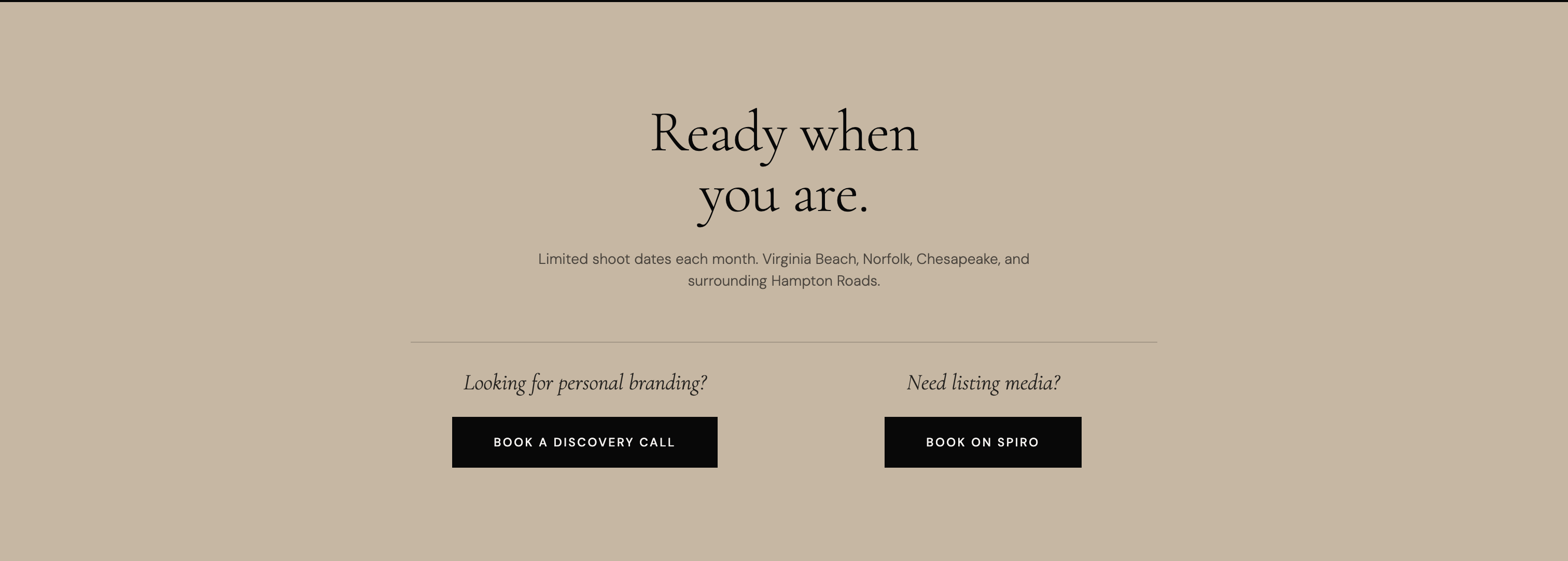 "Ready when you are" — Book on Spiro is on the right.
2. From Instagram: @realestatemedialife — booking link in bio.
3. From your phone: download the Spiro app (iOS) and book straight from there. Same login, same flow.
On Spiro, you'll see three options
Sign in if you already have an account. Create an account if you don't (recommended — keeps all your listings, invoices, and downloads in one place). Or See pricing if you just want to browse first.
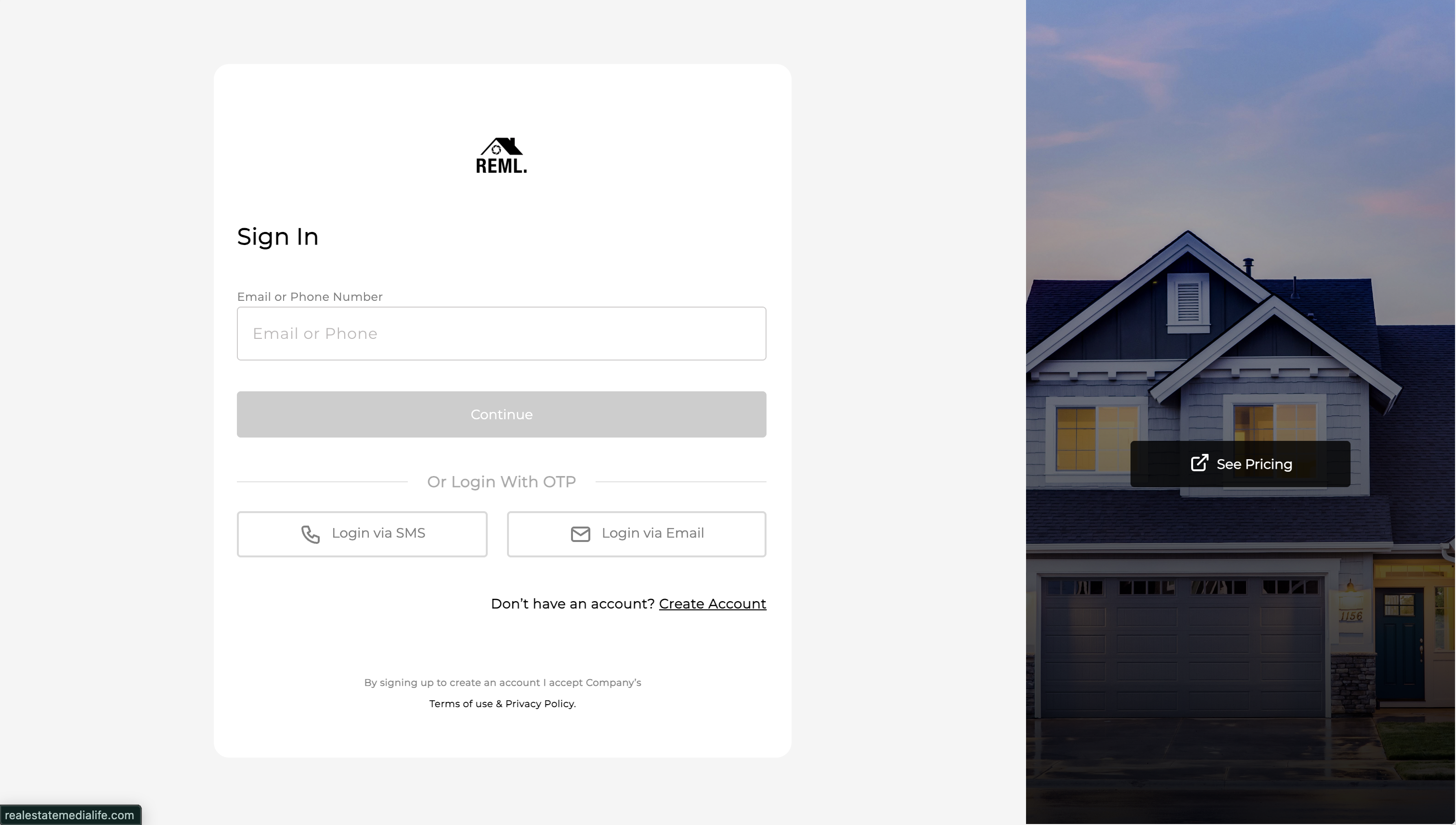 Spiro landing — sign in, create account, or hit See Pricing.
Pick a package or individual service
You can grab one of our packaged tiers, or just pick the individual service you need (photos, video, drone, etc.). Both routes lead to the same listing details page.
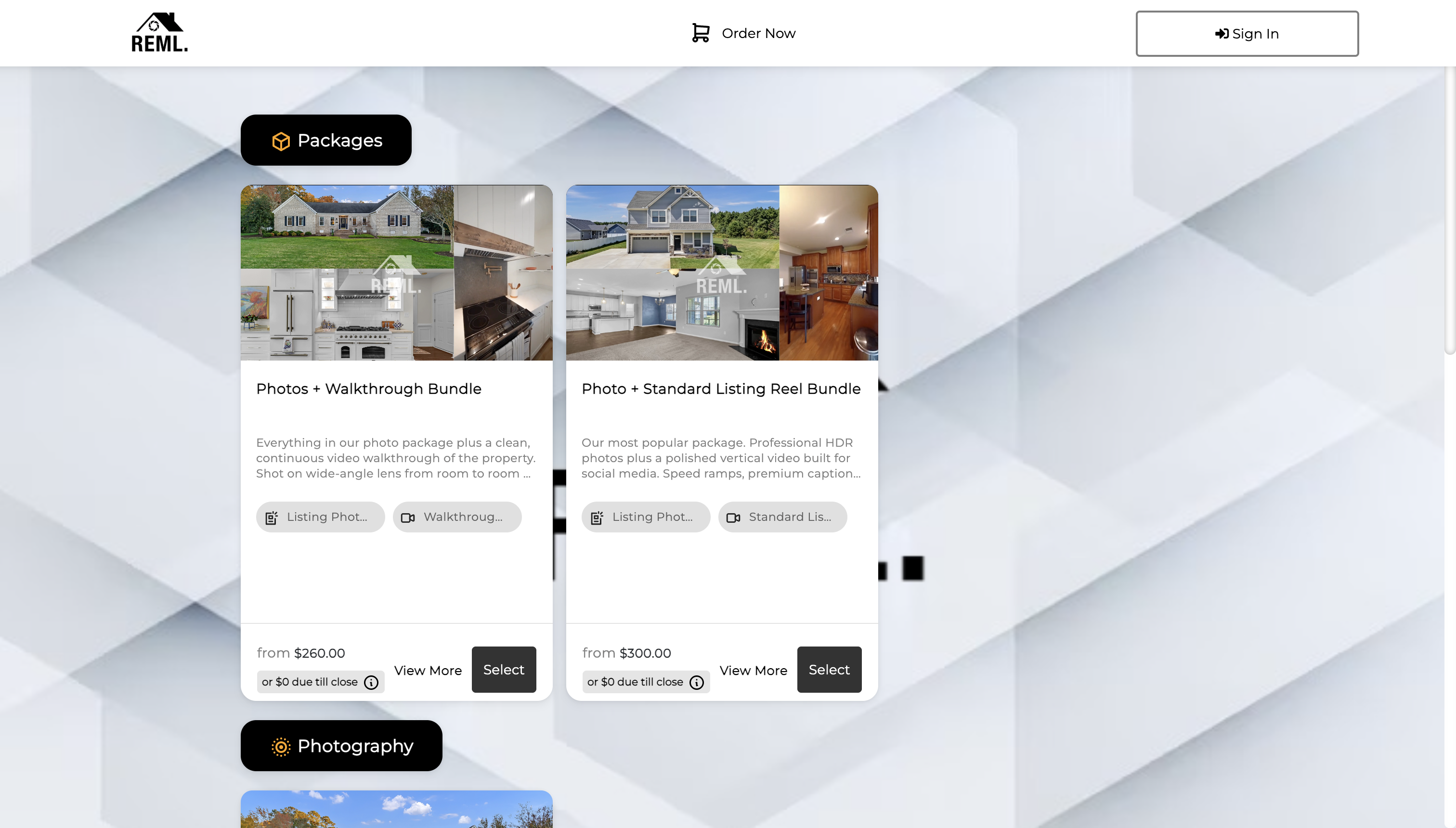 Pick a package (Photos + Walkthrough, Photo + Standard Reel, etc.) or scroll for individual services.
Pricing is calculated automatically when you book, based on the square footage you enter. You'll see your total before you confirm anything.
Listing details
Three fields that drive the price and the prep:
Address — the full property address.
Square footage — this is what calculates your price. An estimate works if you don't have the exact number.
Vacancy — vacant or occupied. Affects what we plan for and how long we're on-site.
You'll also confirm whether to shoot the garage interior. Most agents say yes.
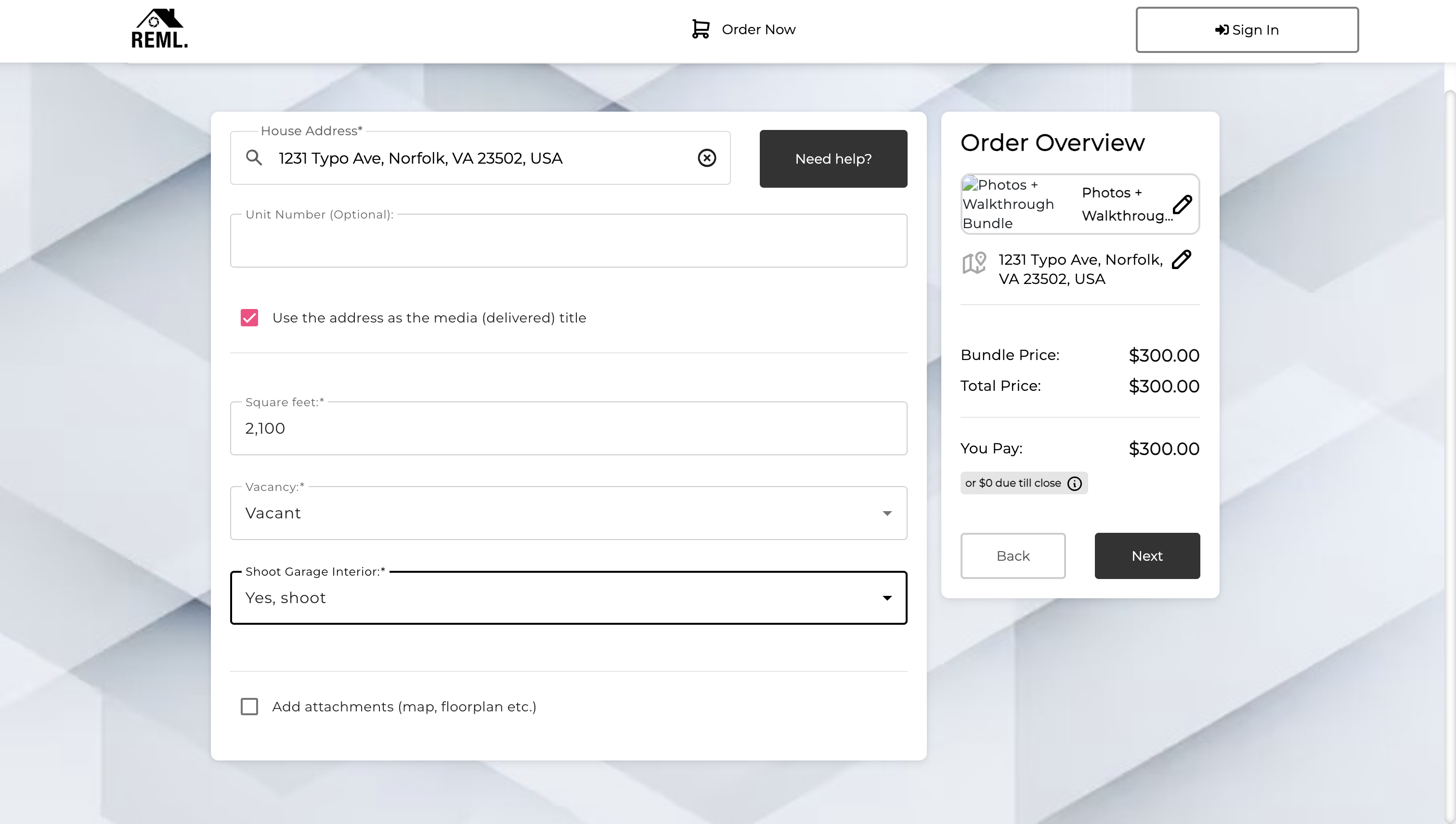 Listing Details — address, sqft, vacancy, garage interior. Price updates live in the right rail.
Additional services (flat fees)
Once your base service is locked, you can add any of these:
- Drone photography (3–6 or 10–15 photos)
- 2D Floor plan
- Premium Listing Reel
- Virtual staging
- Neighborhood spotlight
Each one is a flat fee, not based on square footage. Add the services that apply to your listing.
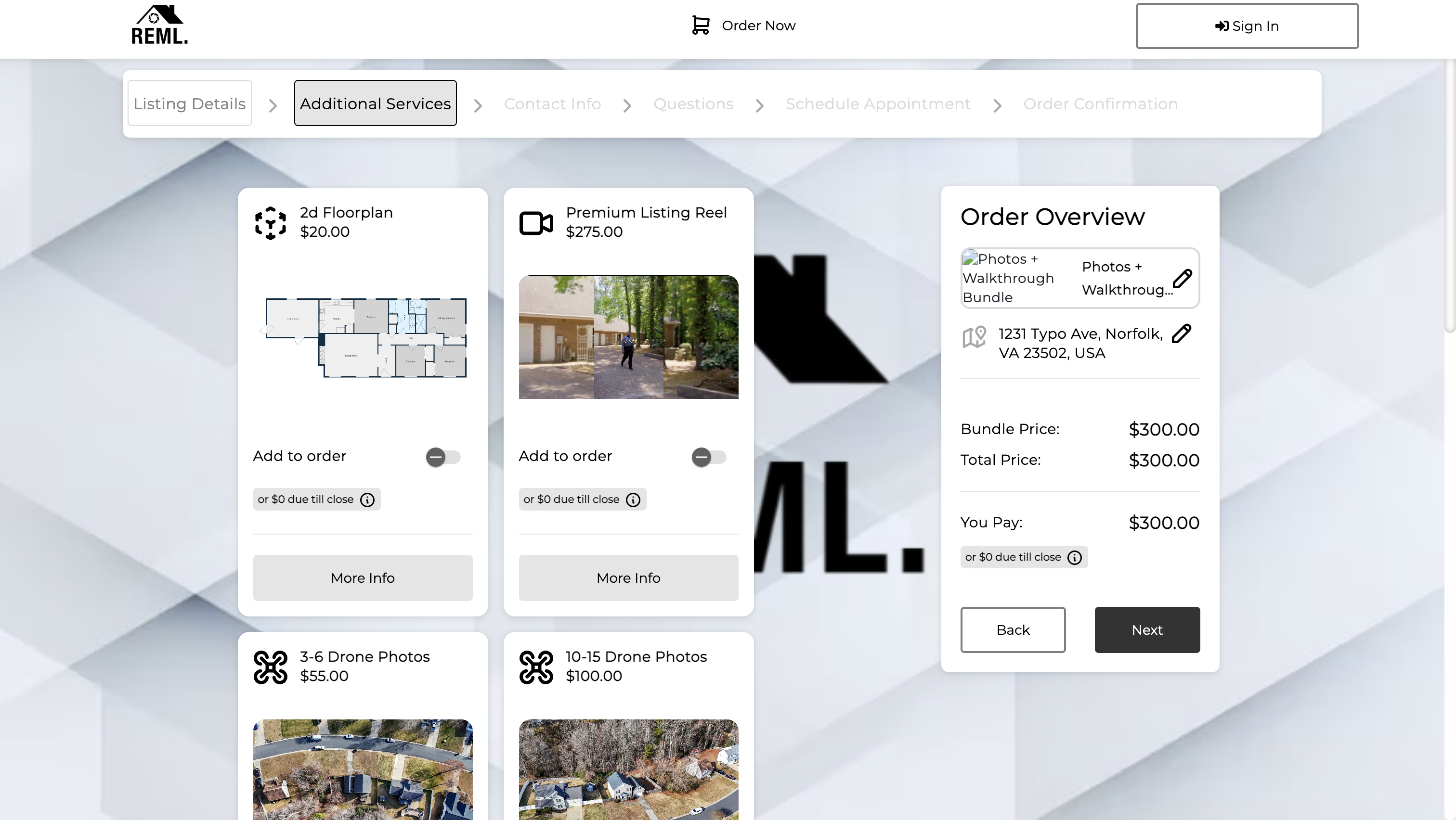 Additional Services — toggle on whatever applies, hit Next.
Your info
If you're already signed in, this section auto-fills. If you're new, you'll enter your name, phone, email, and company.
You can also opt in to Send Text Message Updates about the Order. We recommend turning this on — we use it for arrival texts and day-of confirmations.
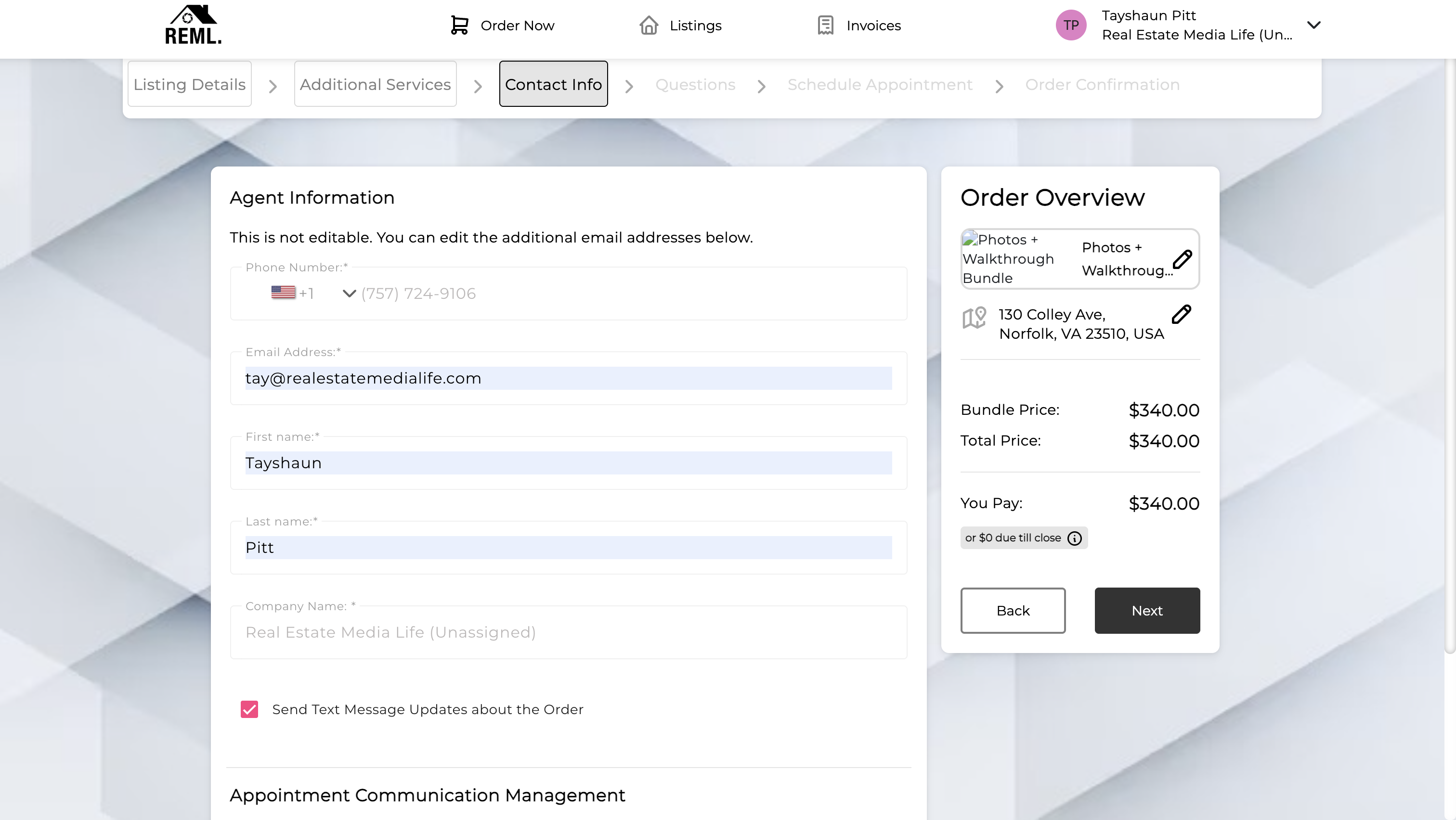 Contact Info — auto-fills if you're signed in. Toggle SMS updates on.
Service-specific questions
Spiro asks a few questions based on what you booked, so we have everything we need before the shoot.
Photo only: "Are there any preferences or special requests you need?" Use this to share anything we should know — a specific shot you want, a room to skip, or a detail that's easy to miss.
Video: you'll be asked whether you'd like to write the script yourself or have us handle it, your song preference (pick one or let us choose), and any additional vision for the shoot.
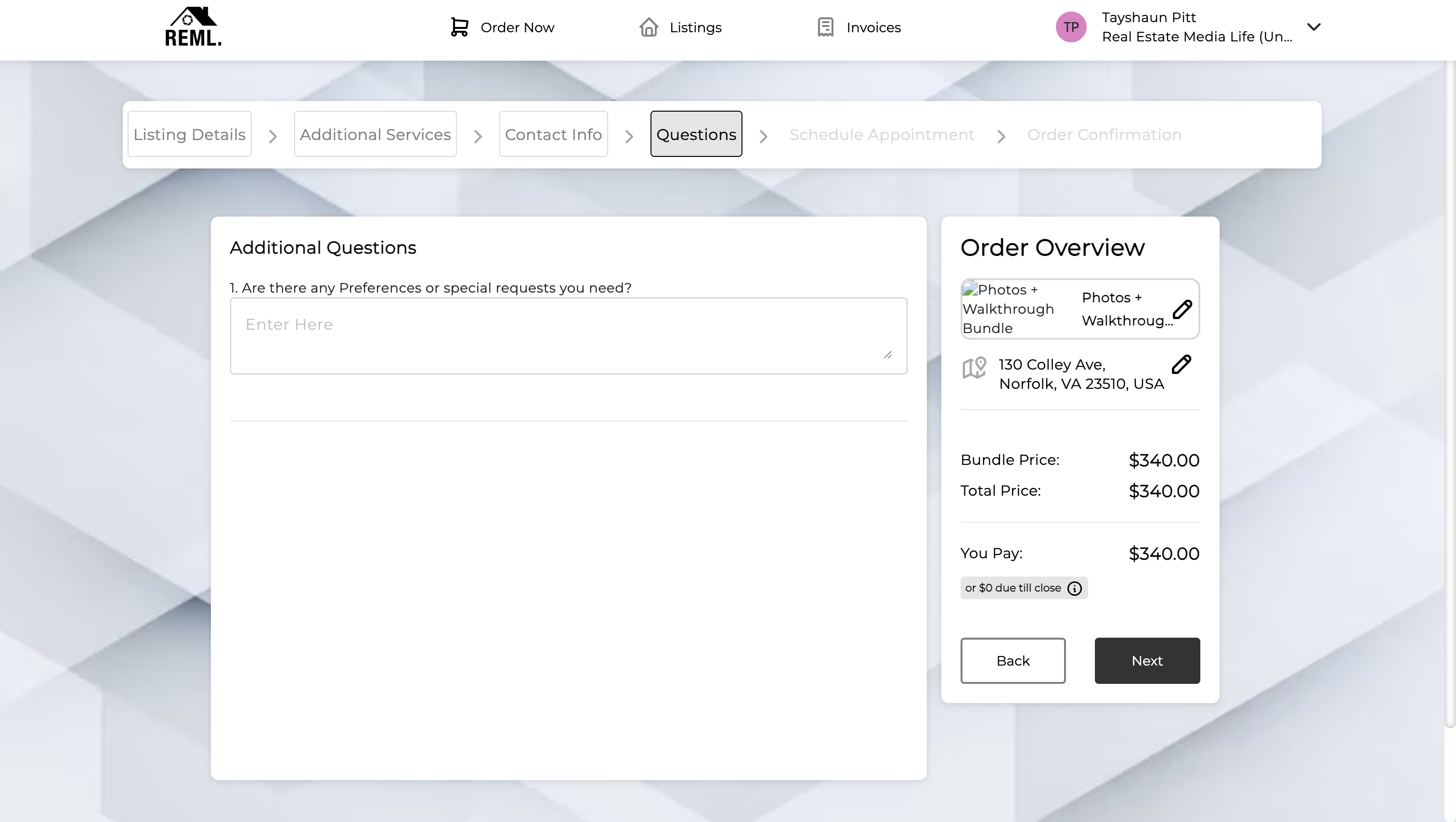 Additional Questions — one field for photo, more for video.
Schedule the appointment
Last screen: pick the date and time, and tell us how we get into the property.
Entry method options:
- Lockbox — preferred. Fastest turnaround, you don't have to be there.
- Owner present — if vacant access isn't possible.
- Agent entry — you meet us, then leave before we shoot.
Add an Additional Comment if there's anything we need to know — gate code, parking, neighbor heads-up, etc.
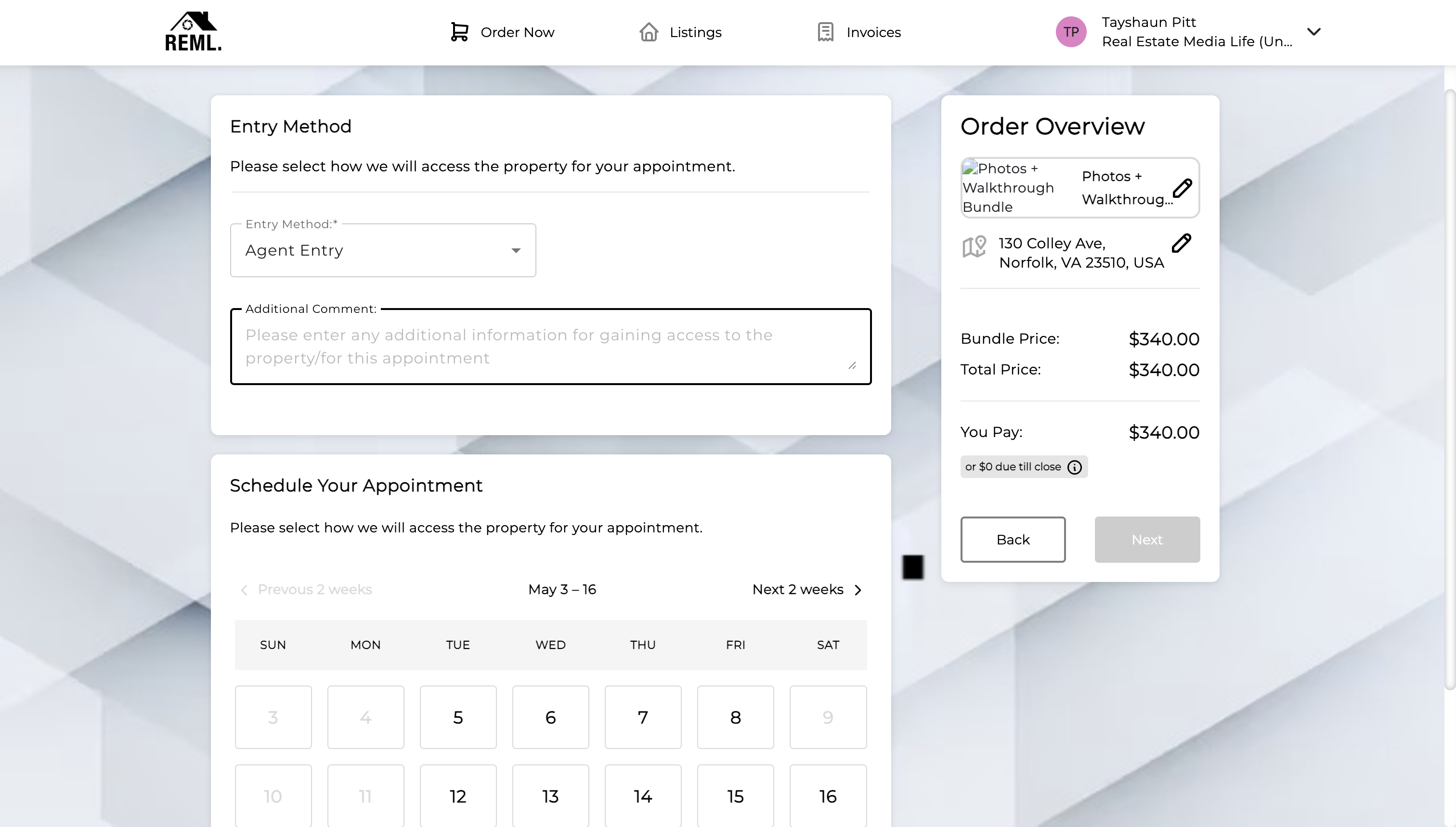 Entry Method + calendar. Pick your shoot day from the available slots.
Confirmation
You'll get an immediate email confirming the booking. We review and confirm manually within a few hours, then send your full Order Confirmed email with prep notes, the day-of timeline, and the reschedule policy.
From there, your shoot is scheduled. The next step is preparing the property — see how to prep your listing.
Don't see what you're looking for?
Reply to any email from us, send a text, or call. We answer everything within an hour during business hours.